

Touch displays
Interactive touch displays: the digital hub for meetings and lessons
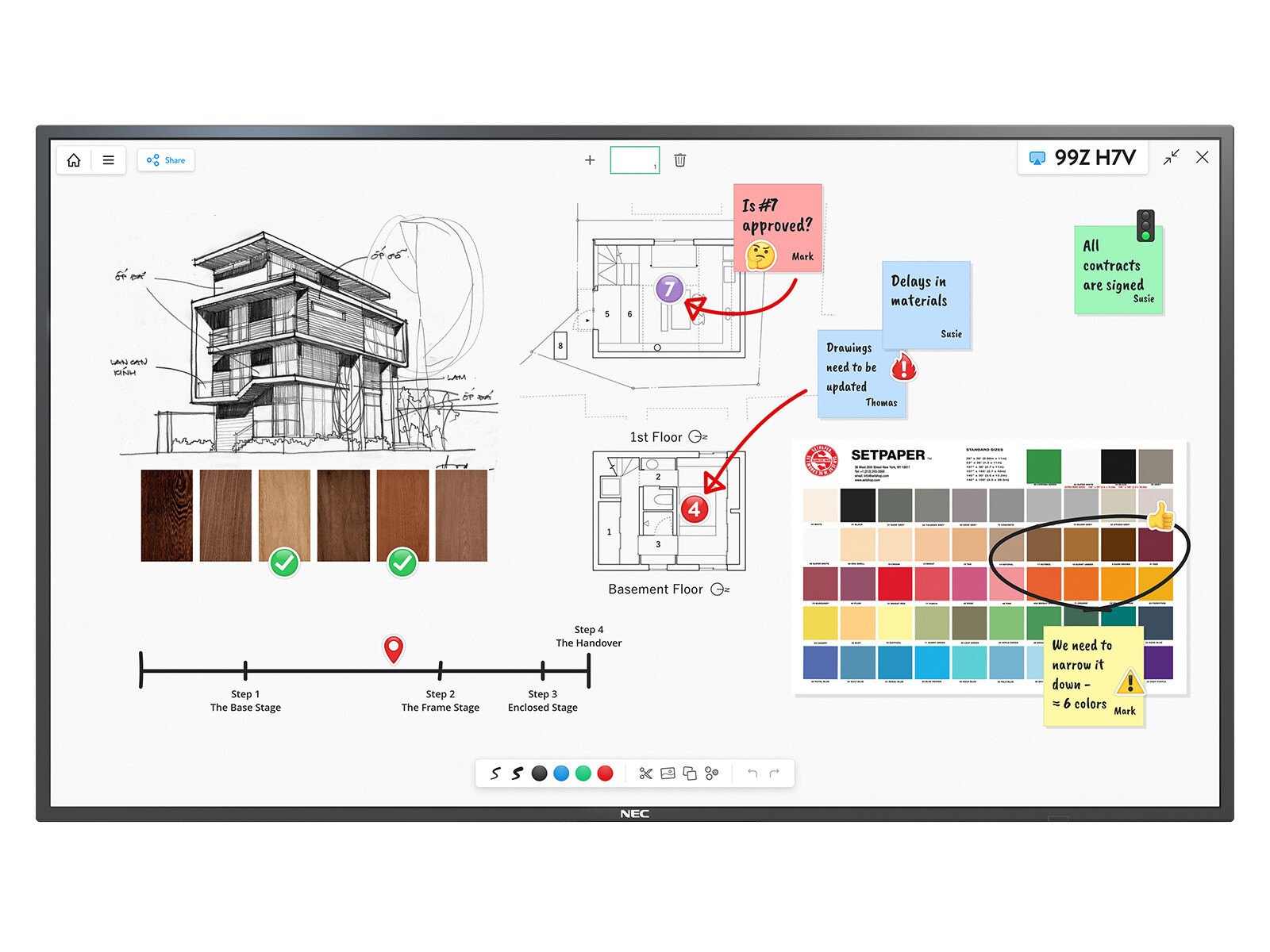
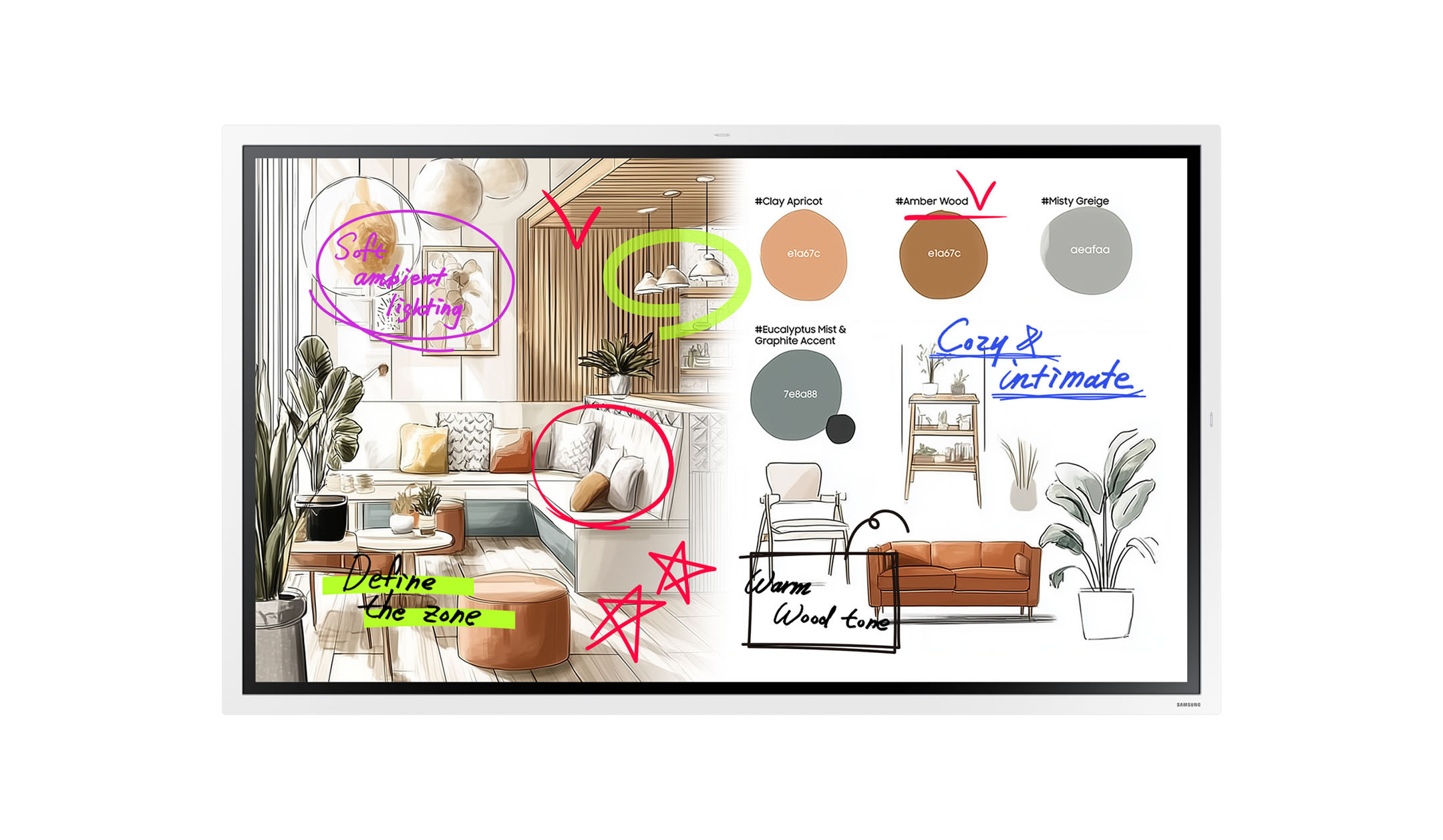
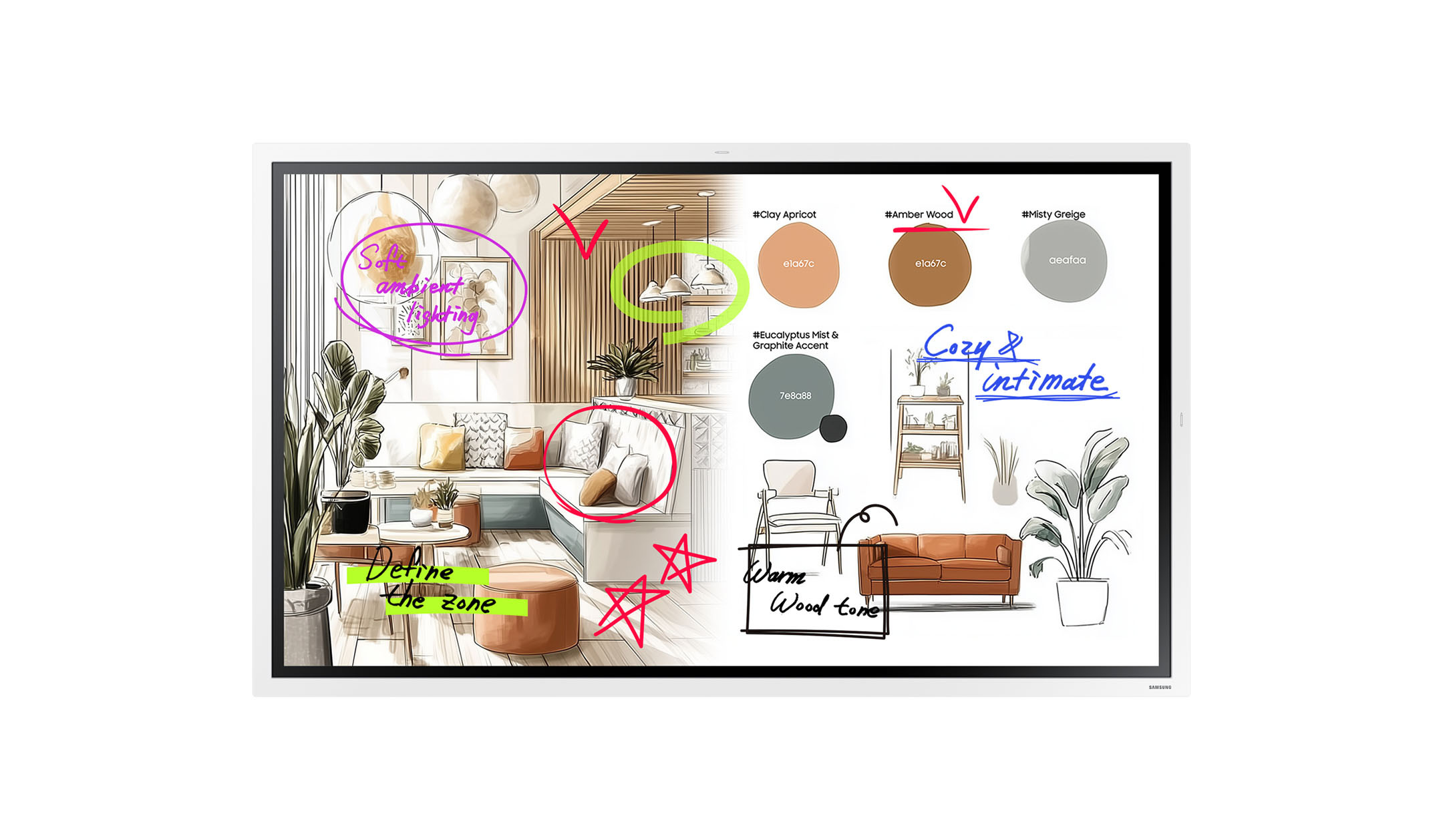
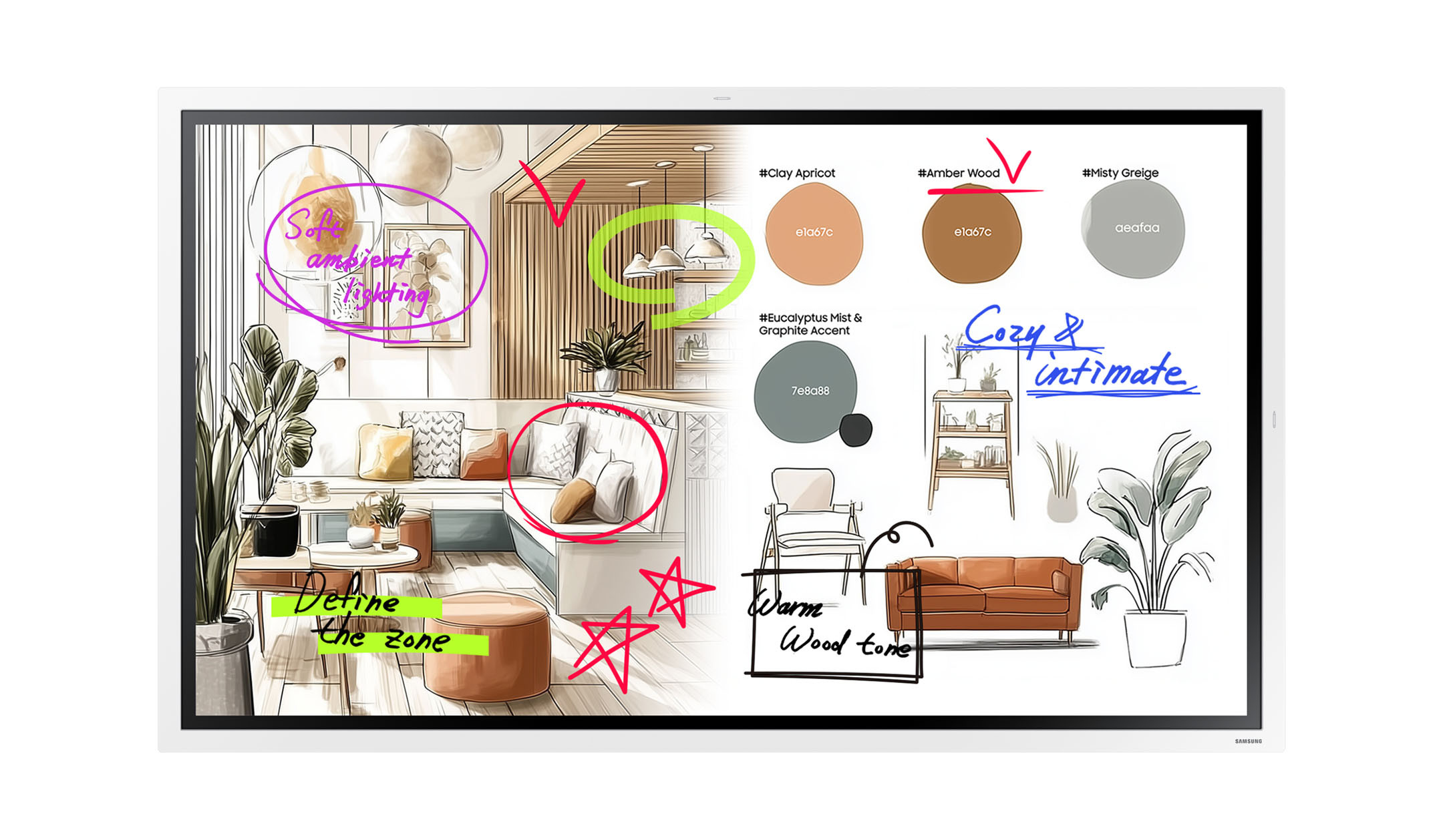
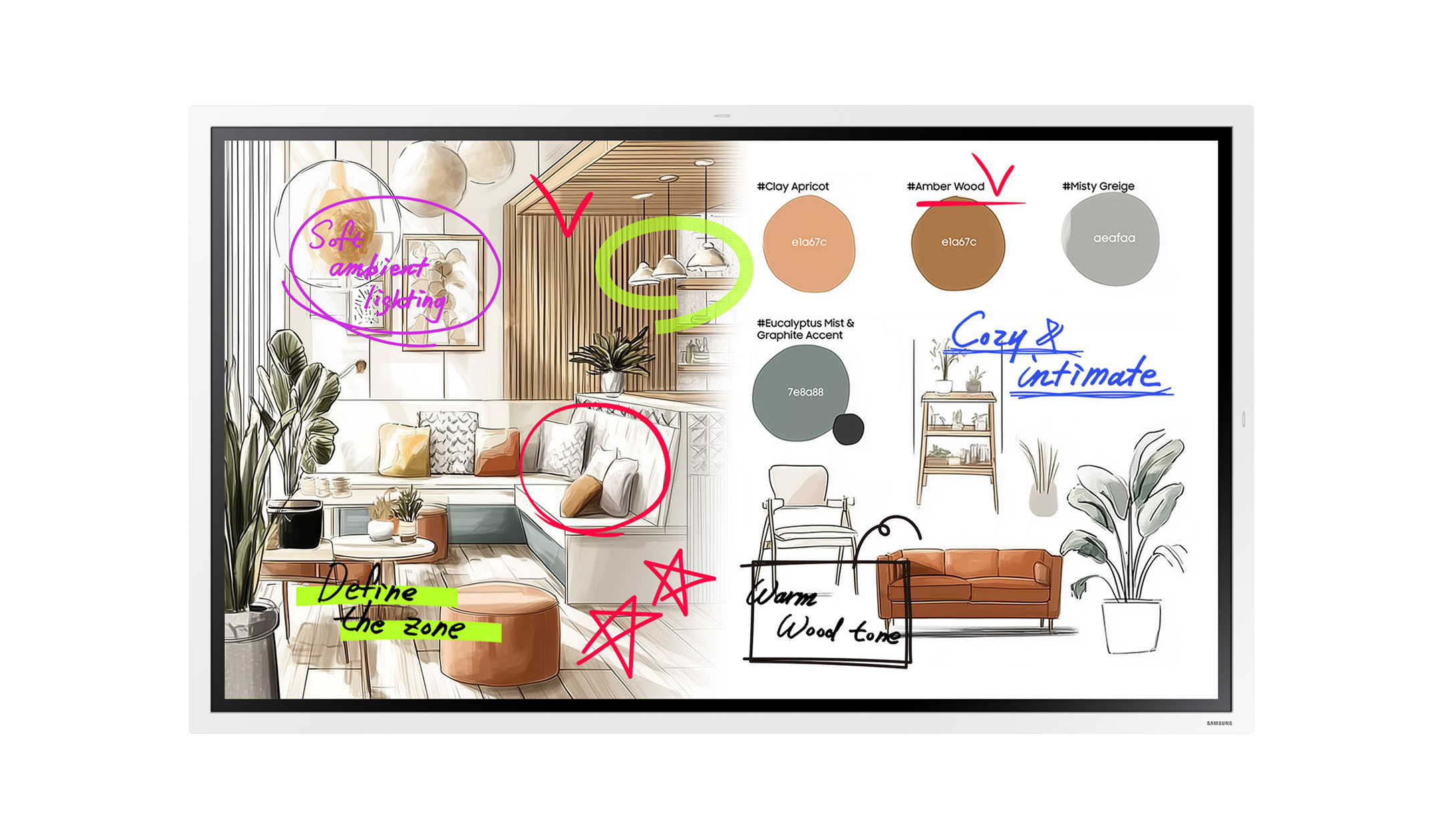
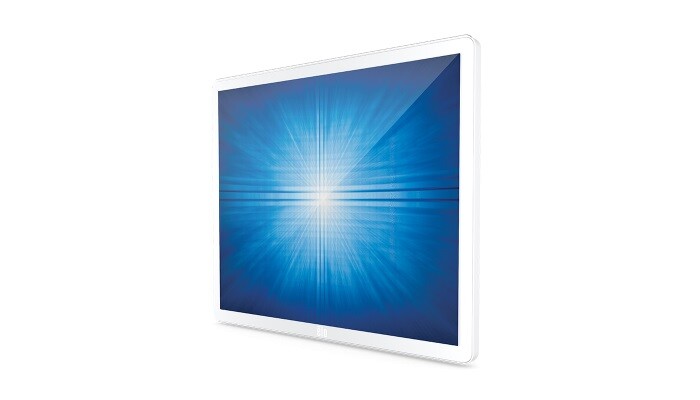
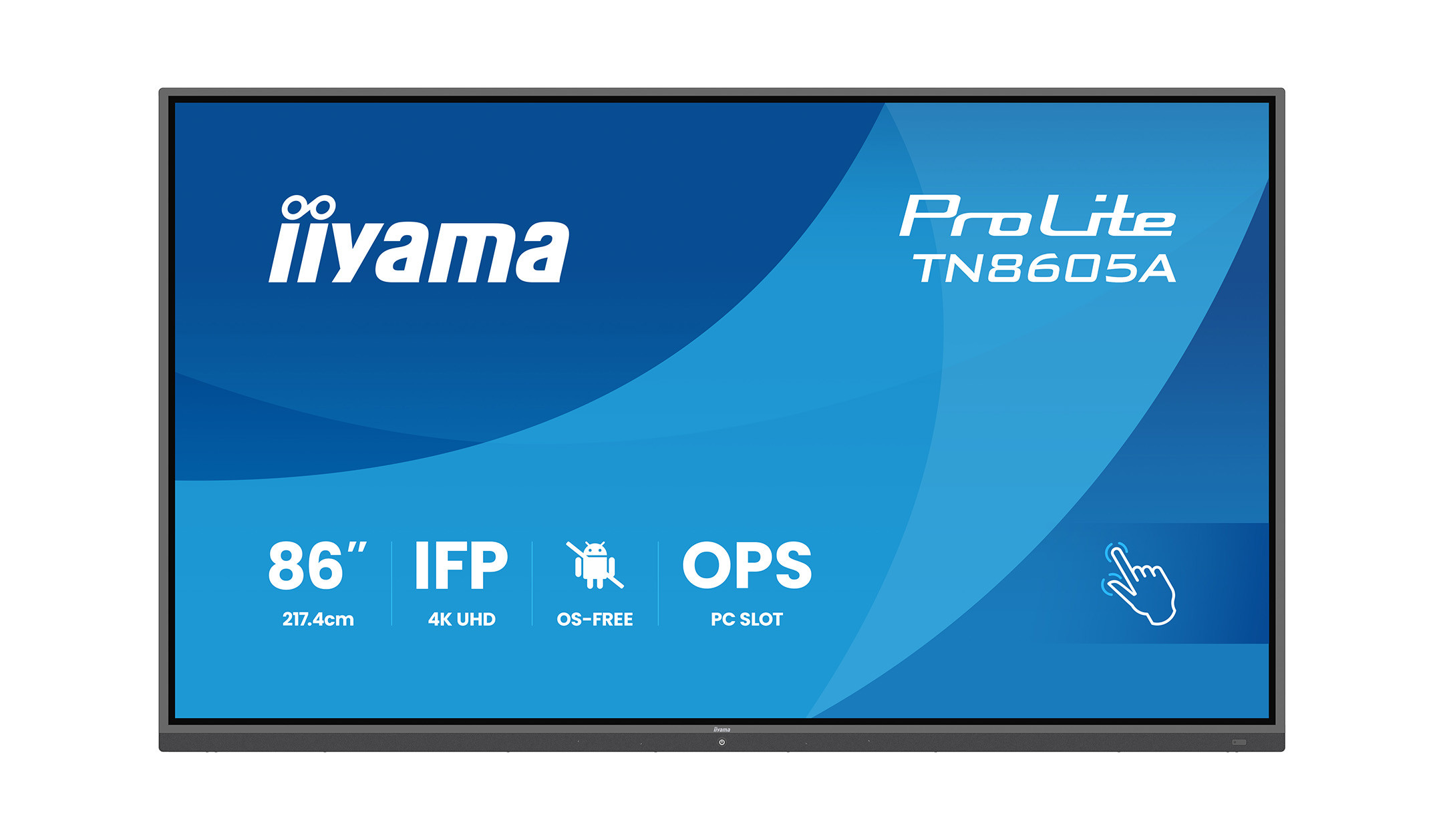
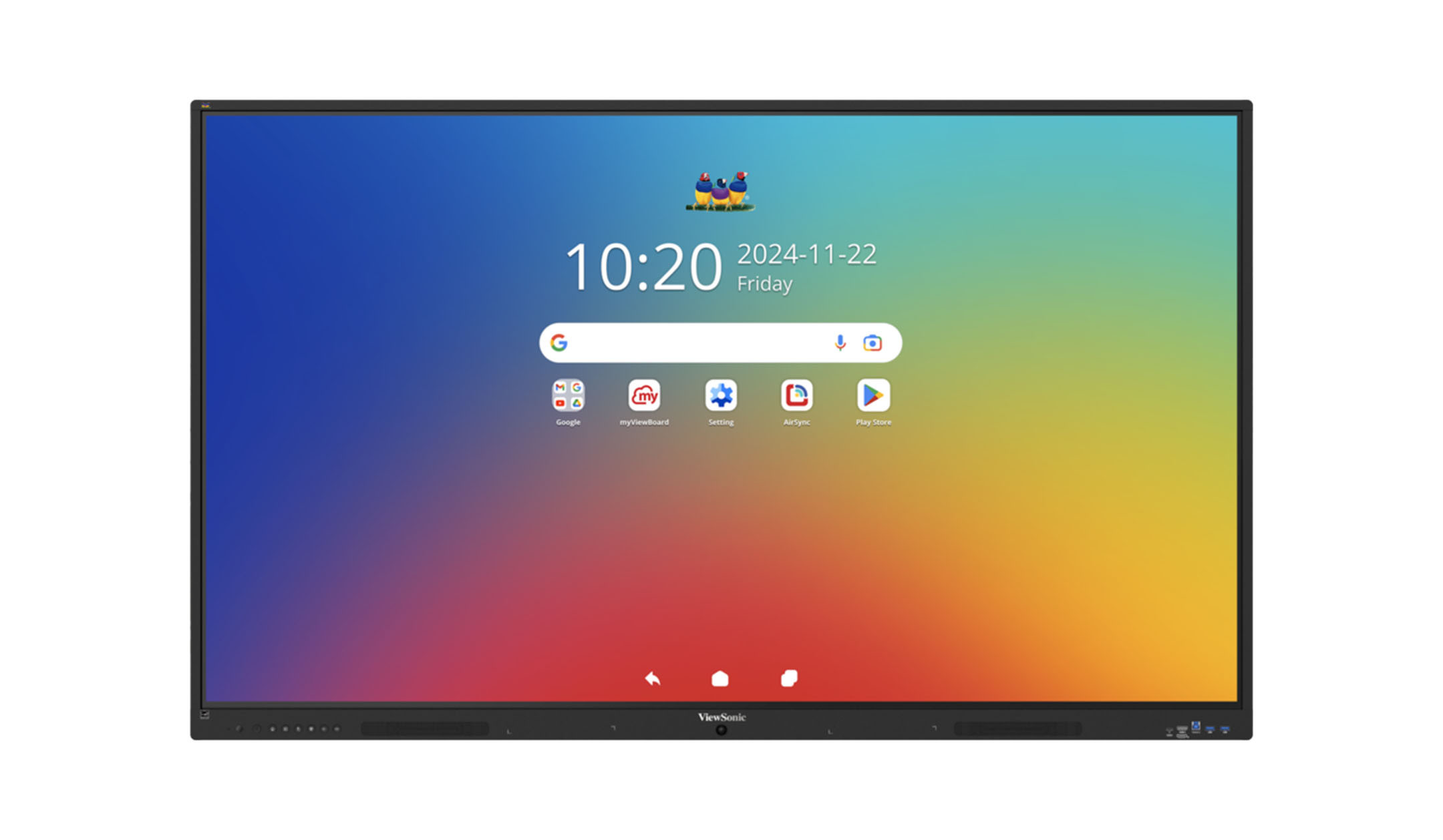
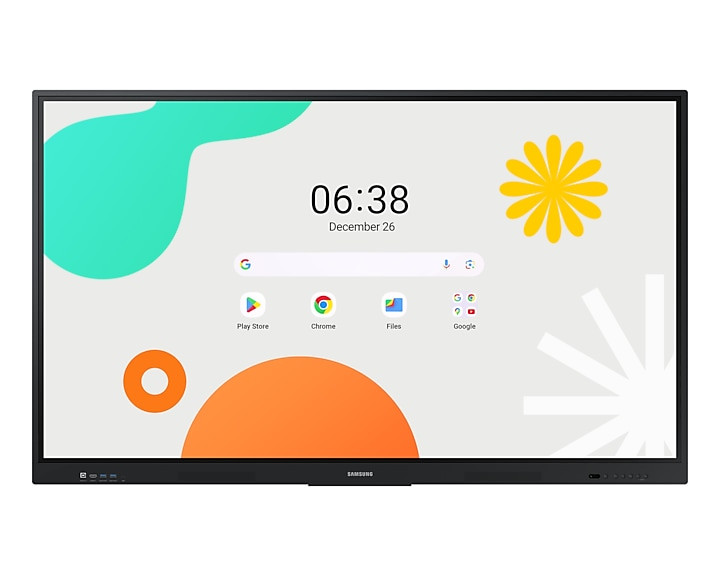
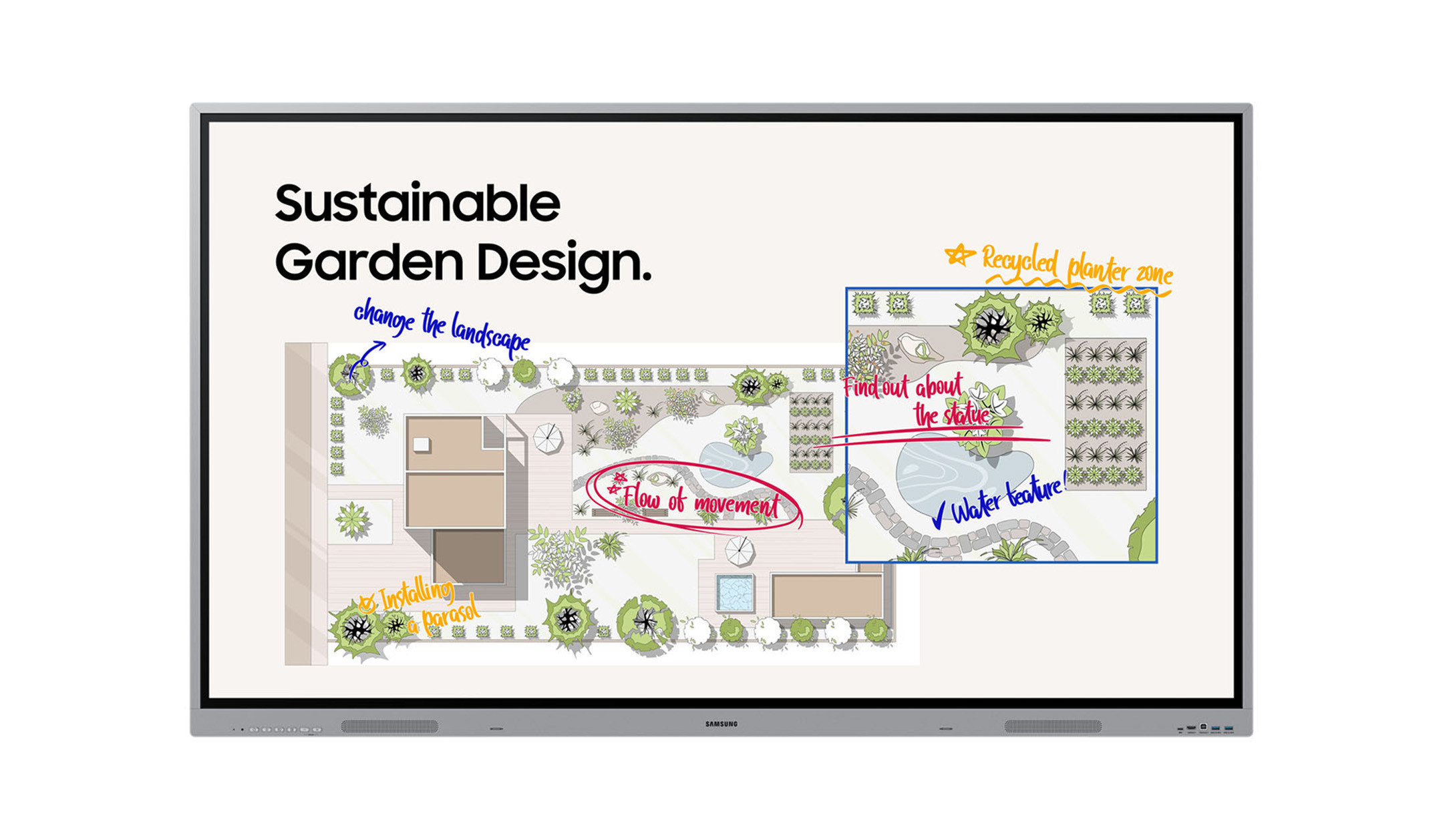
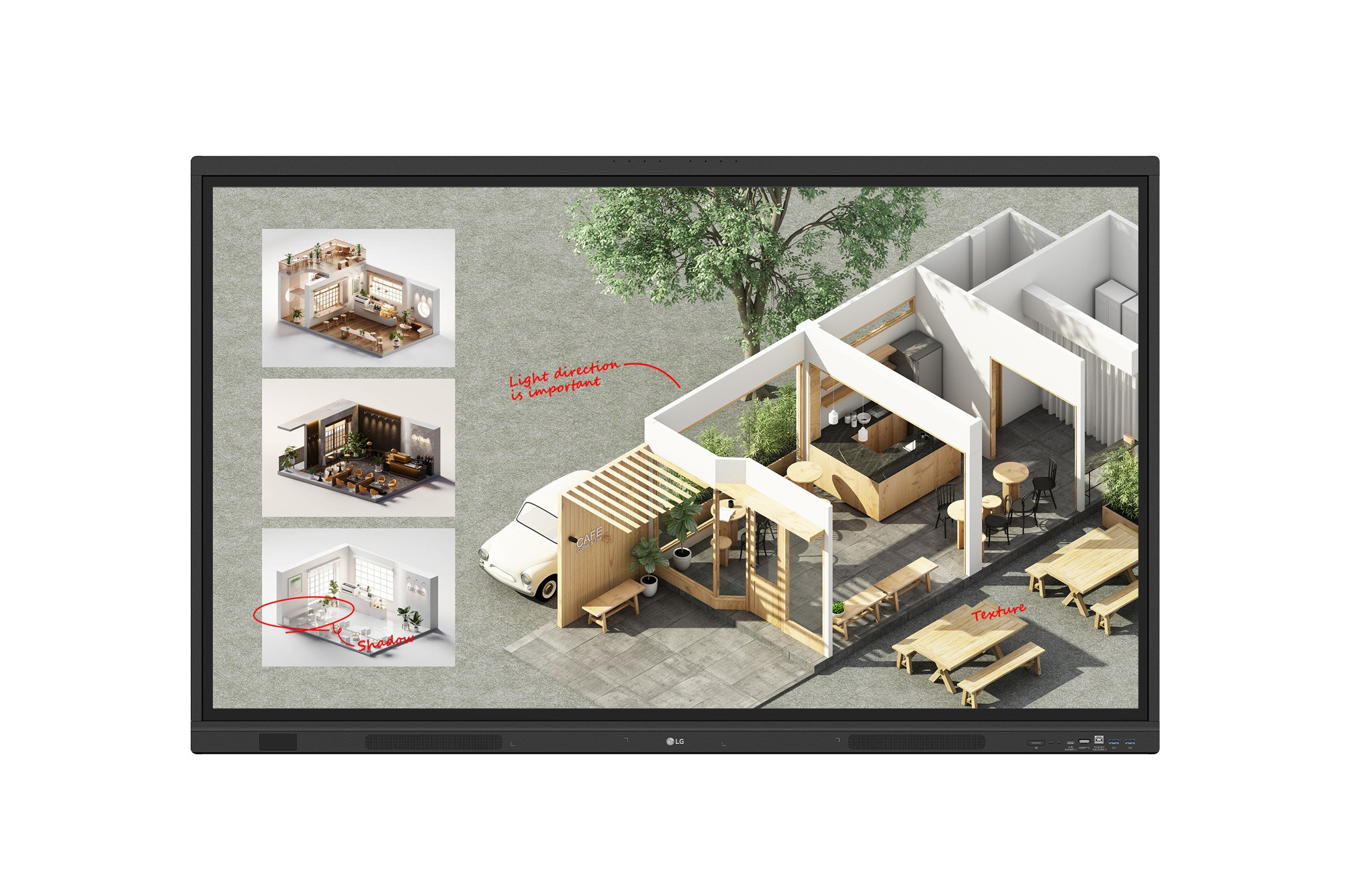
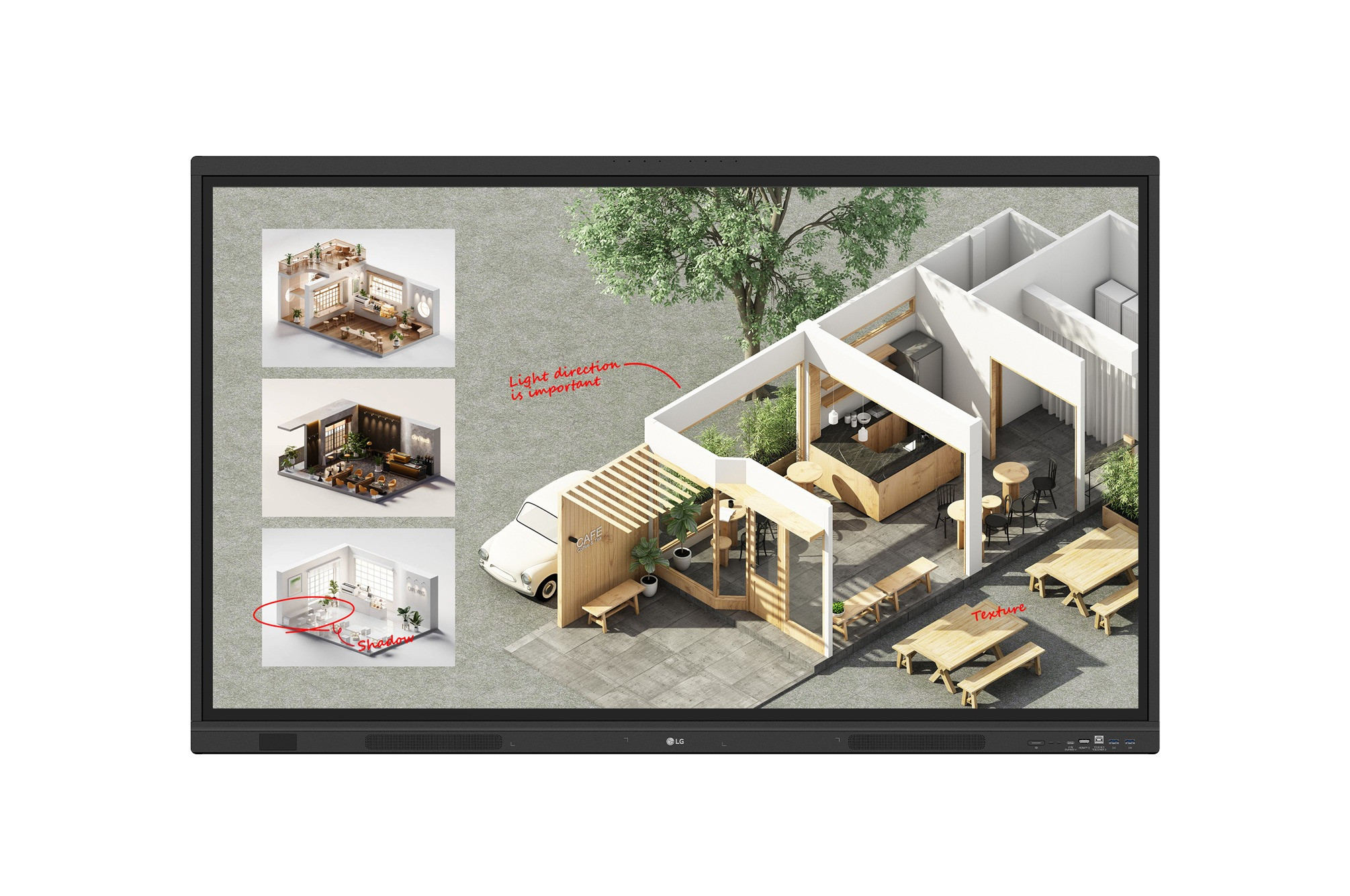
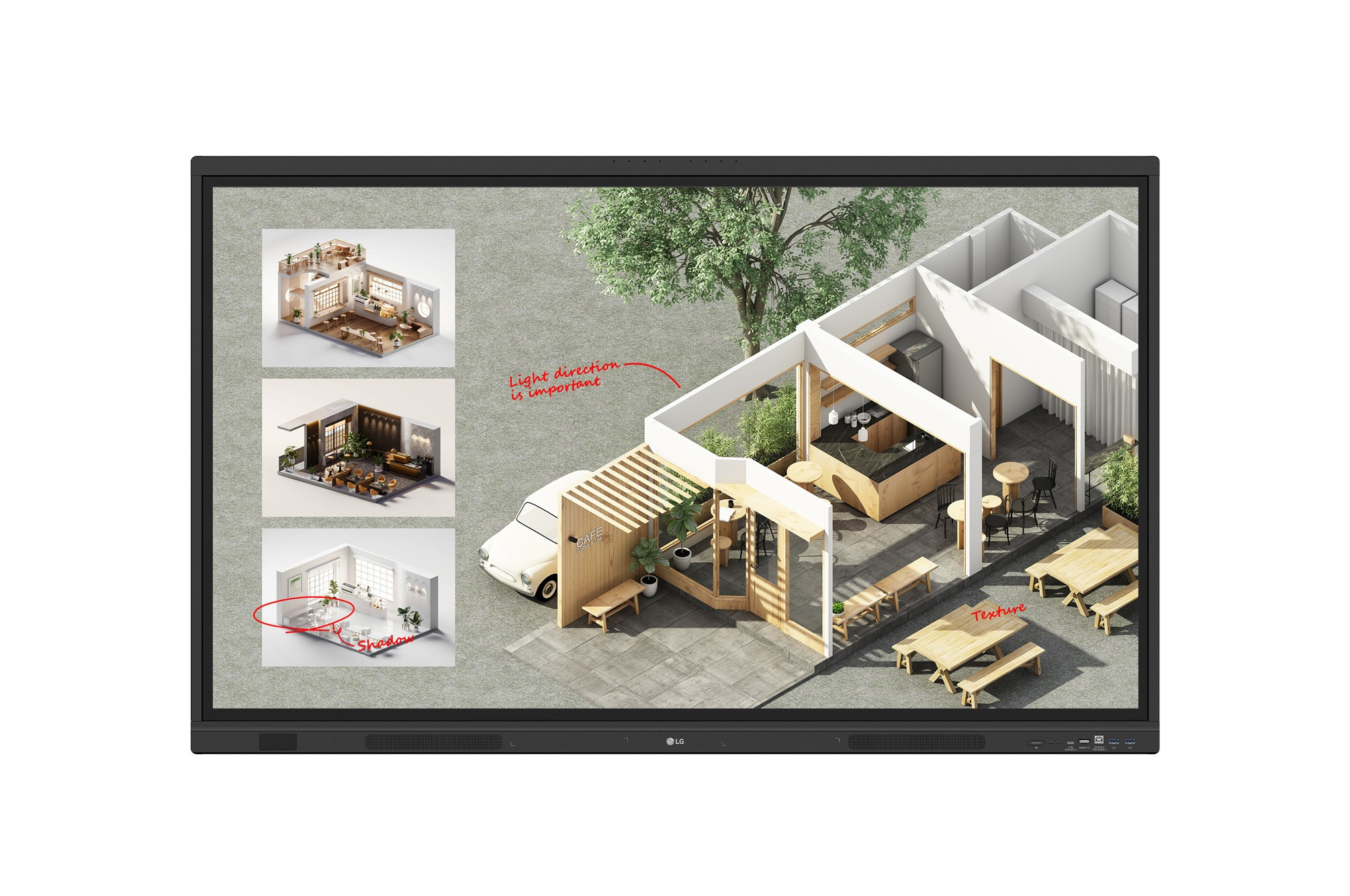
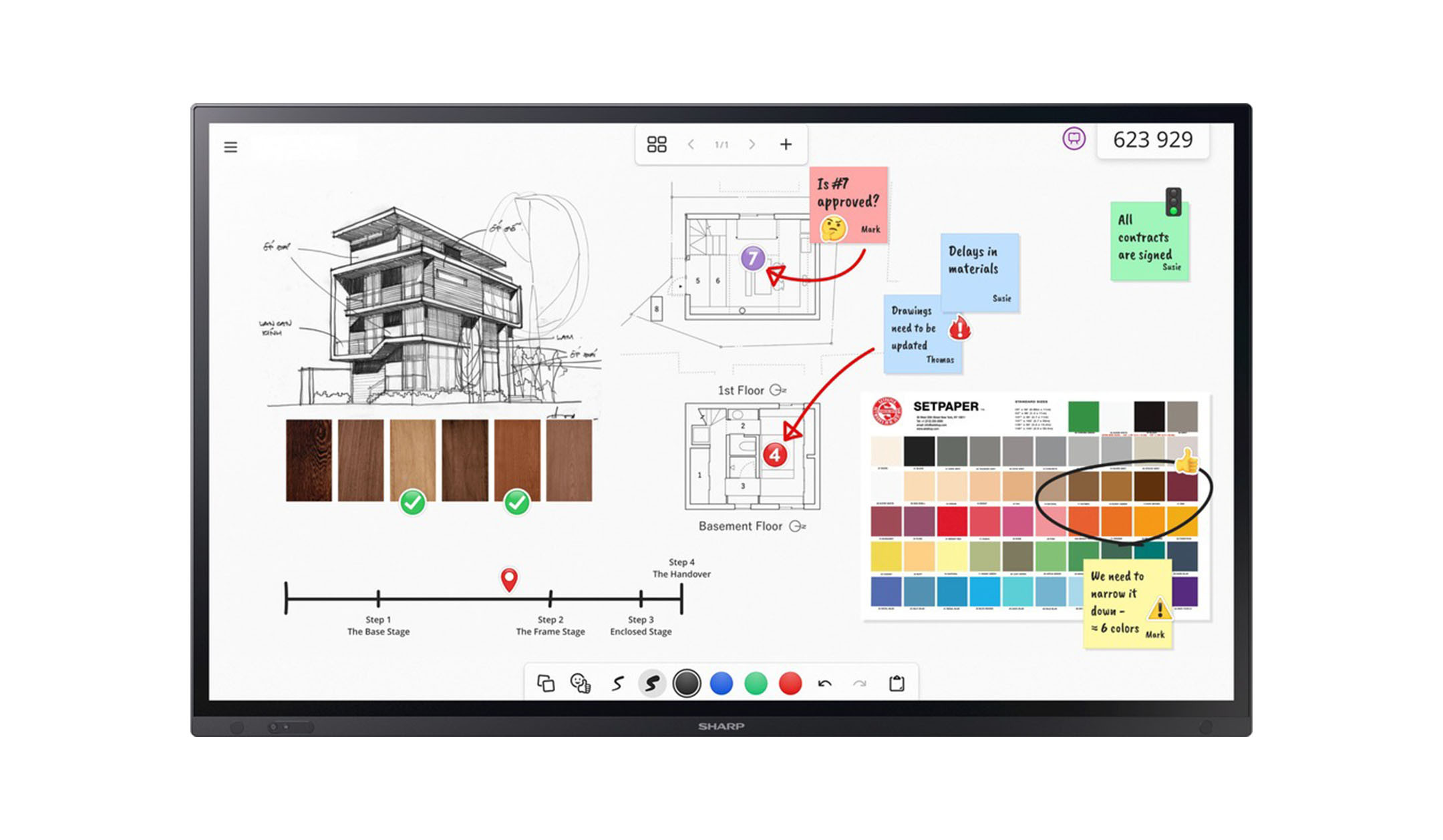
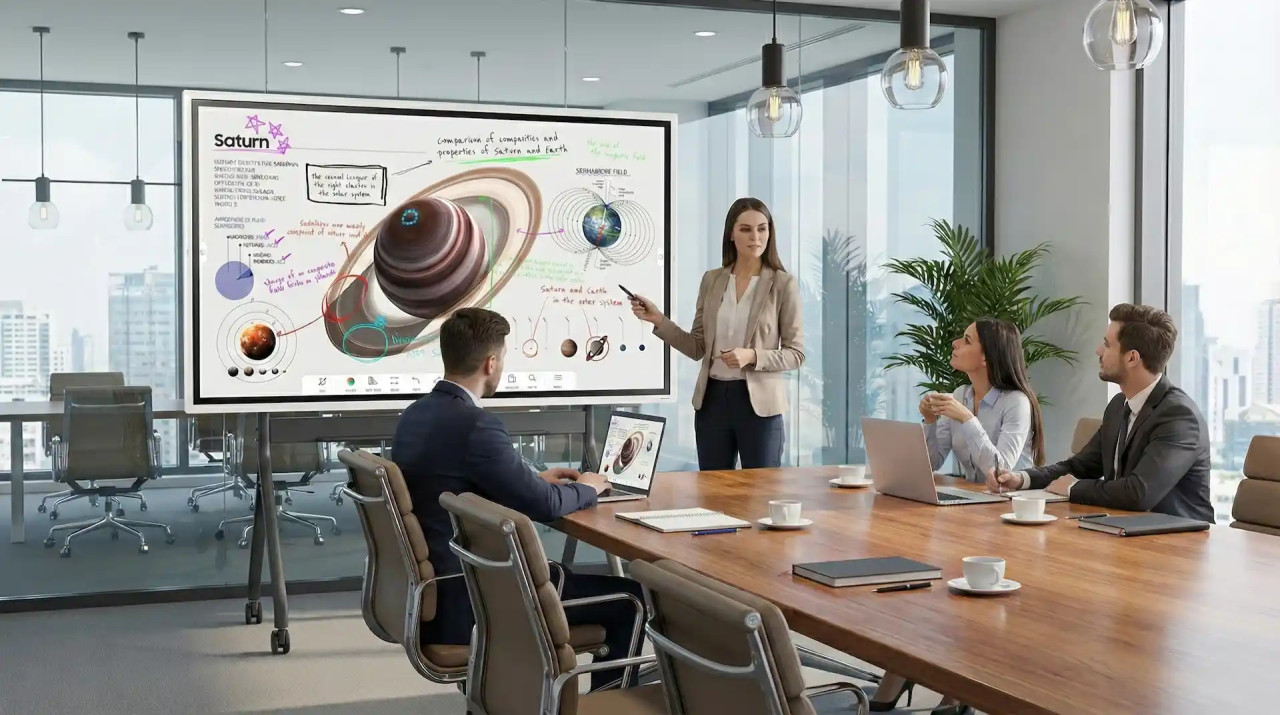
An interactive display is much more than just a large touchscreen. It can be used as a digital whiteboard, a presentation screen and a workspace on which several people can write, draw and move content around at the same time. All that is created on it can be saved, sent as a PDF or continued to be worked on in the next session. Compared with a traditional interactive whiteboard with projectors, there are no shadows, no need to change the lamp and no need for recalibration.
The benefits of interactive touch displays at a glance
- A digital whiteboard and presentation screen in one: write, draw and add comments directly on the screen.
- Collaborate: Thanks to multi-touch, several people can write at the same time in a lesson or workshop.
- Wireless presentation: Mirror content from a laptop, tablet or smartphone onto the display wirelessly.
- Save and share your work: Save whiteboard images and notes, send them as PDFs or continue working on them in your next session.
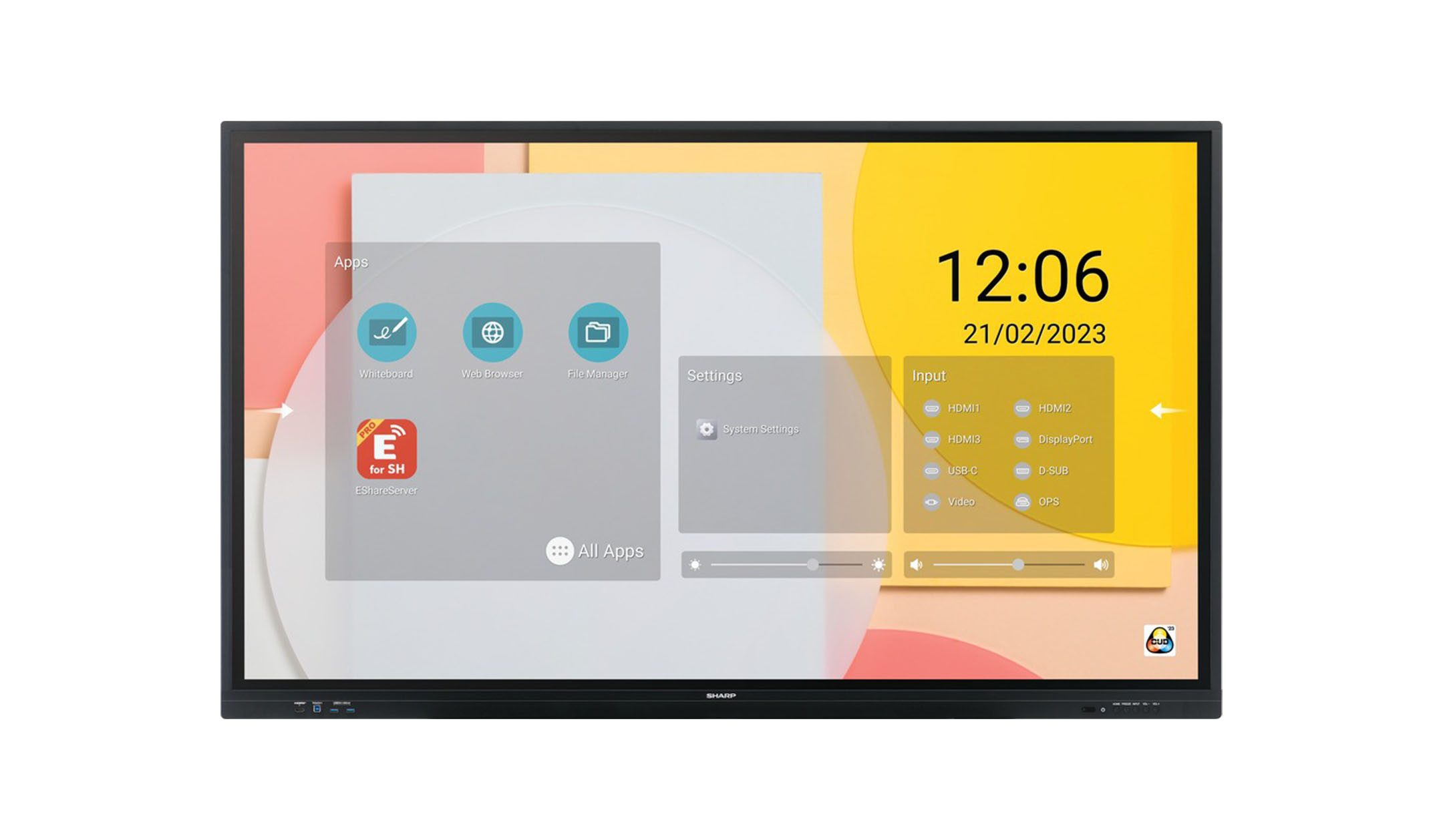
- Flexibly expandable: With Android and app access, Windows via an OPS PC, or a camera and microphone for hybrid meetings, the display adapts to your needs.
In the meeting room: collaboration without a tangle of cables
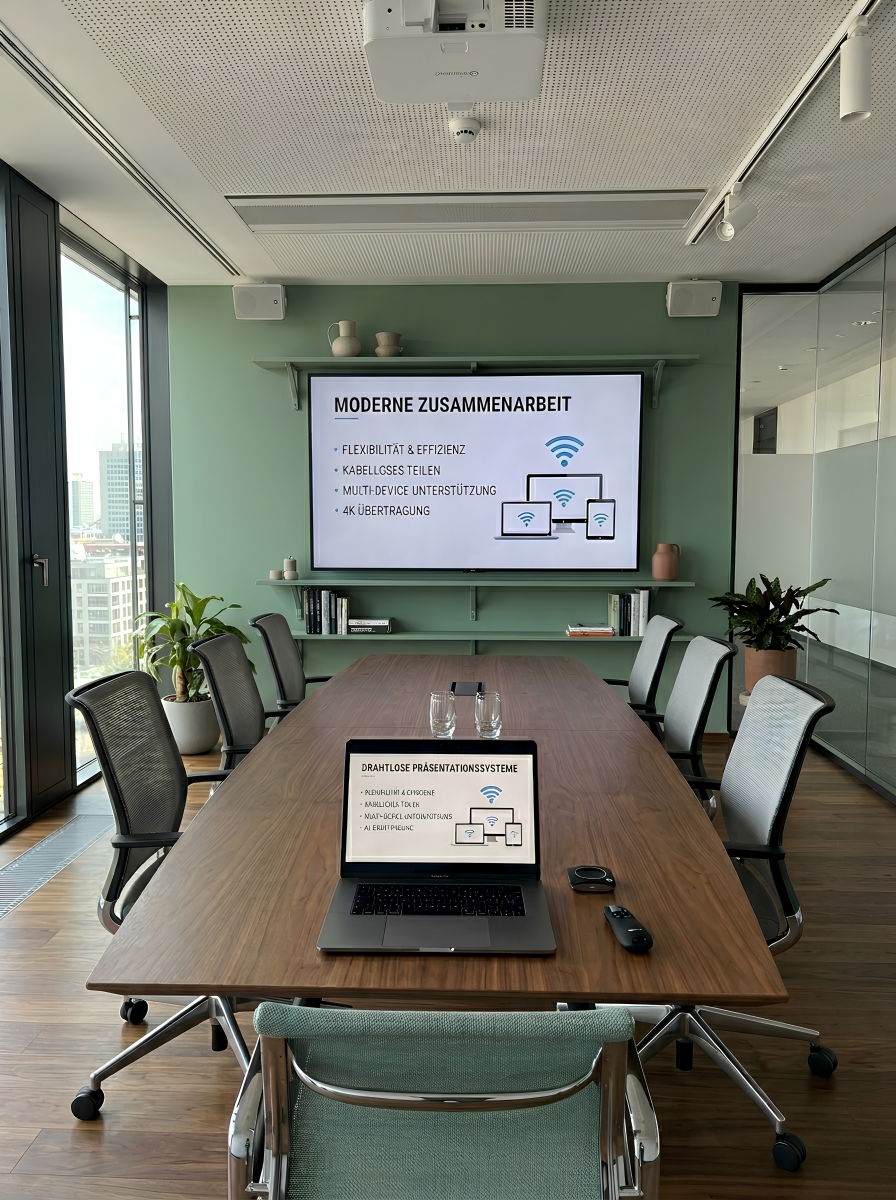
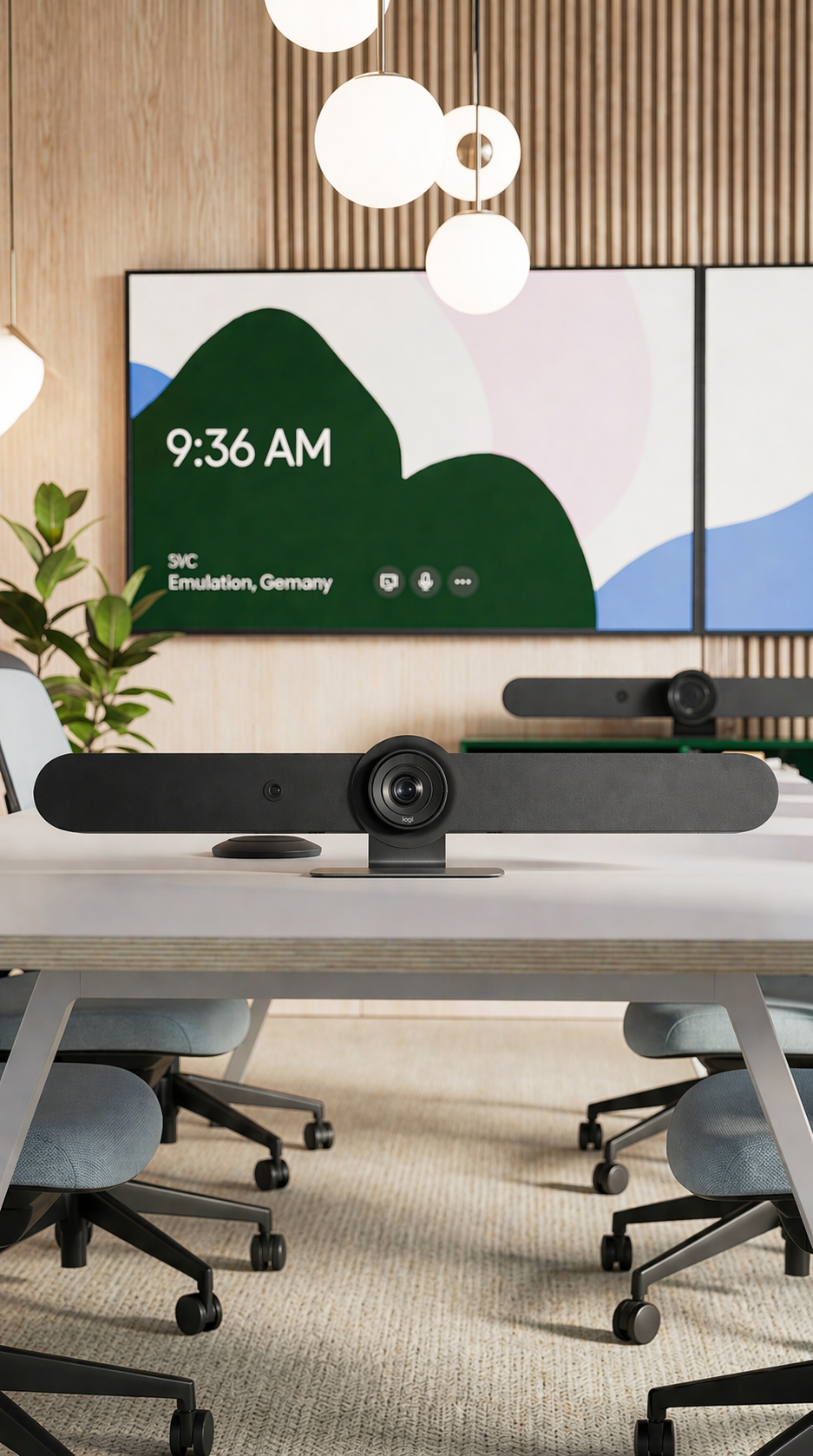
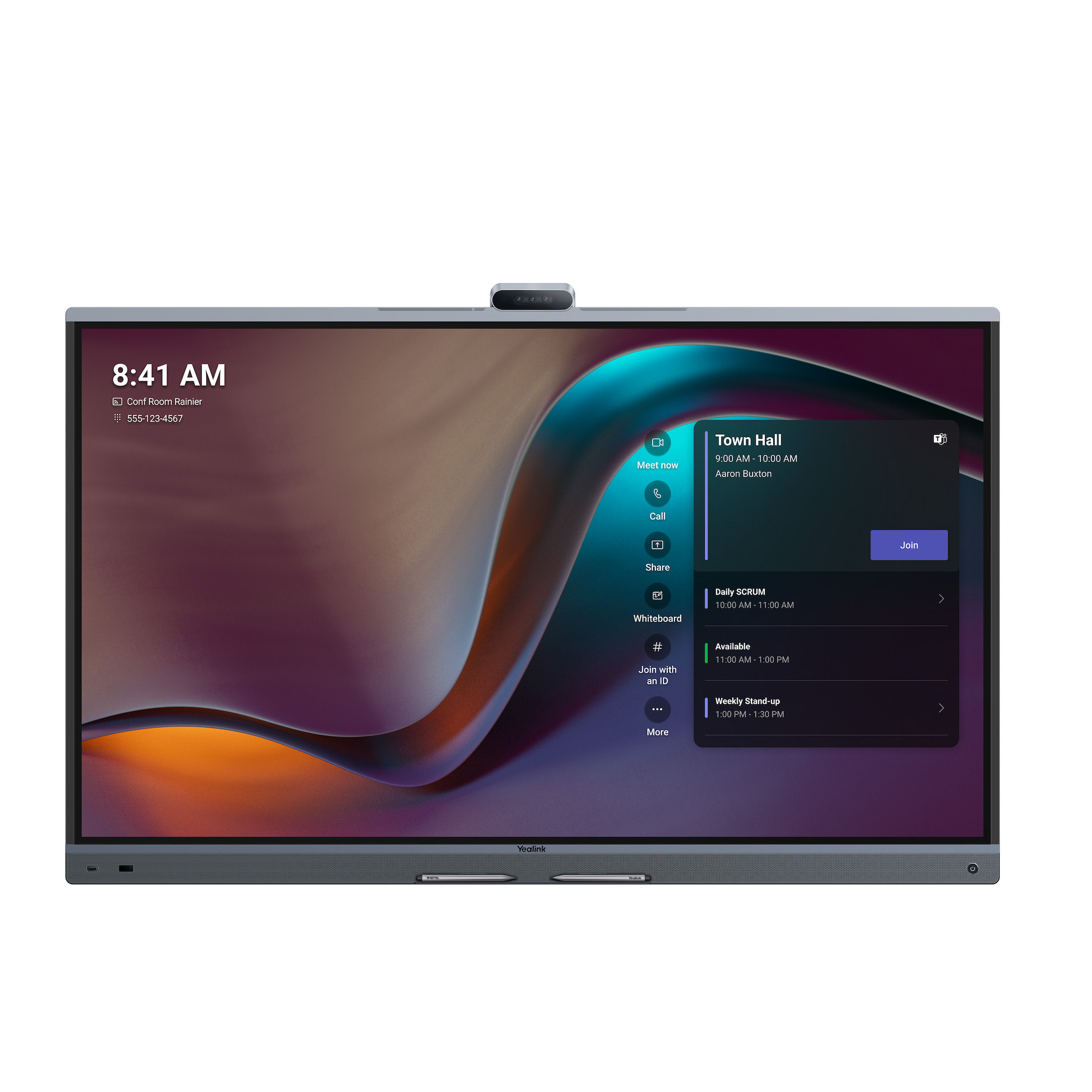
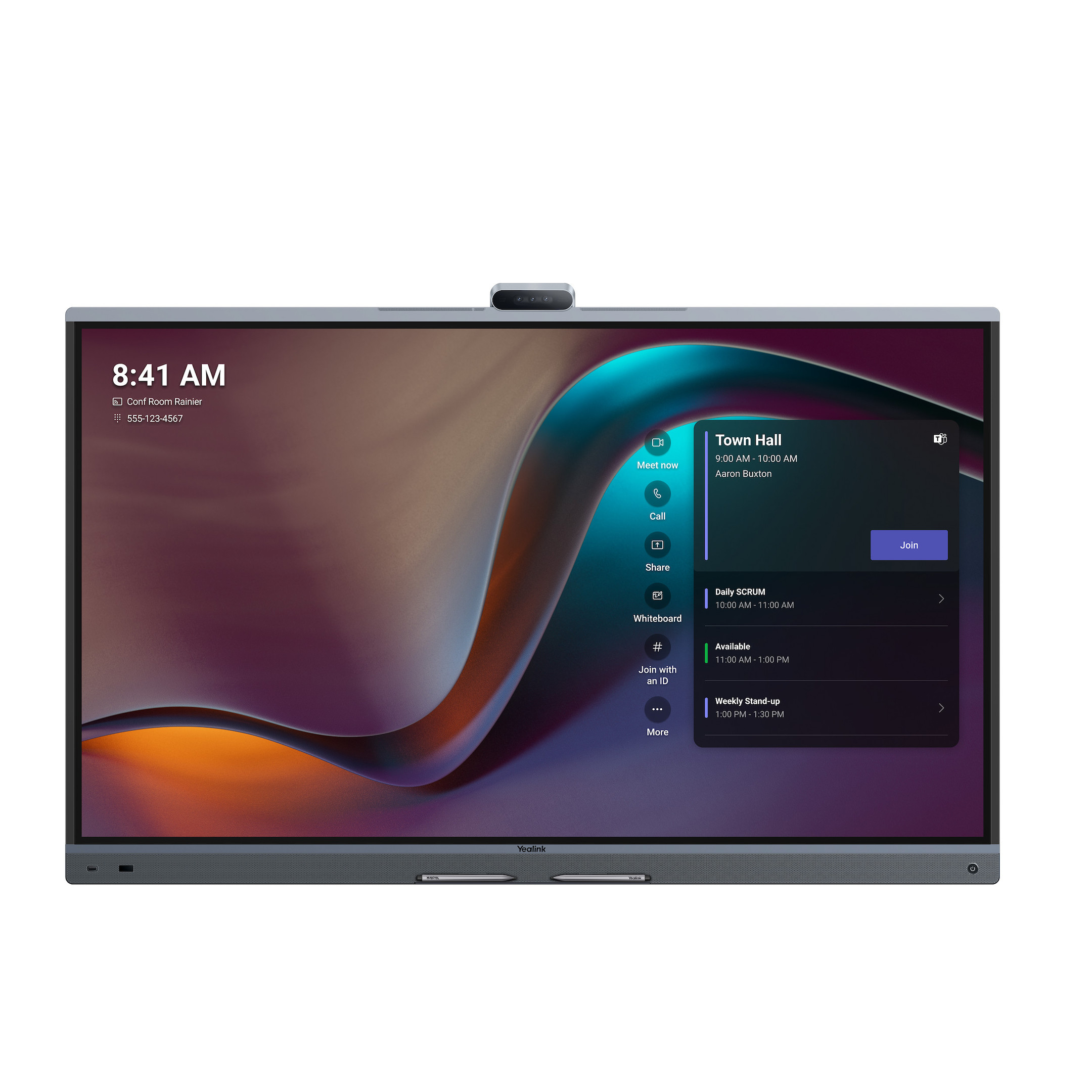
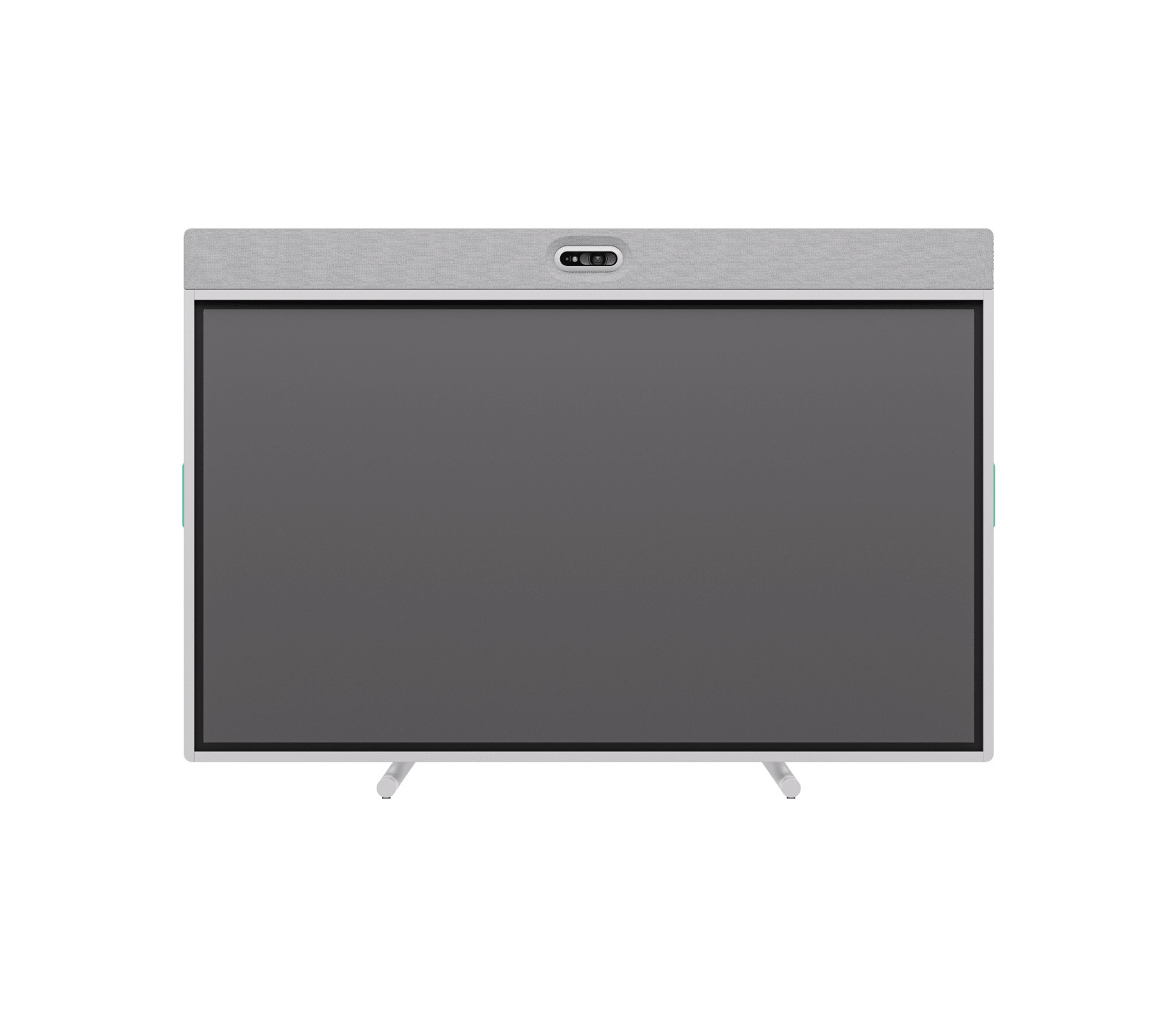
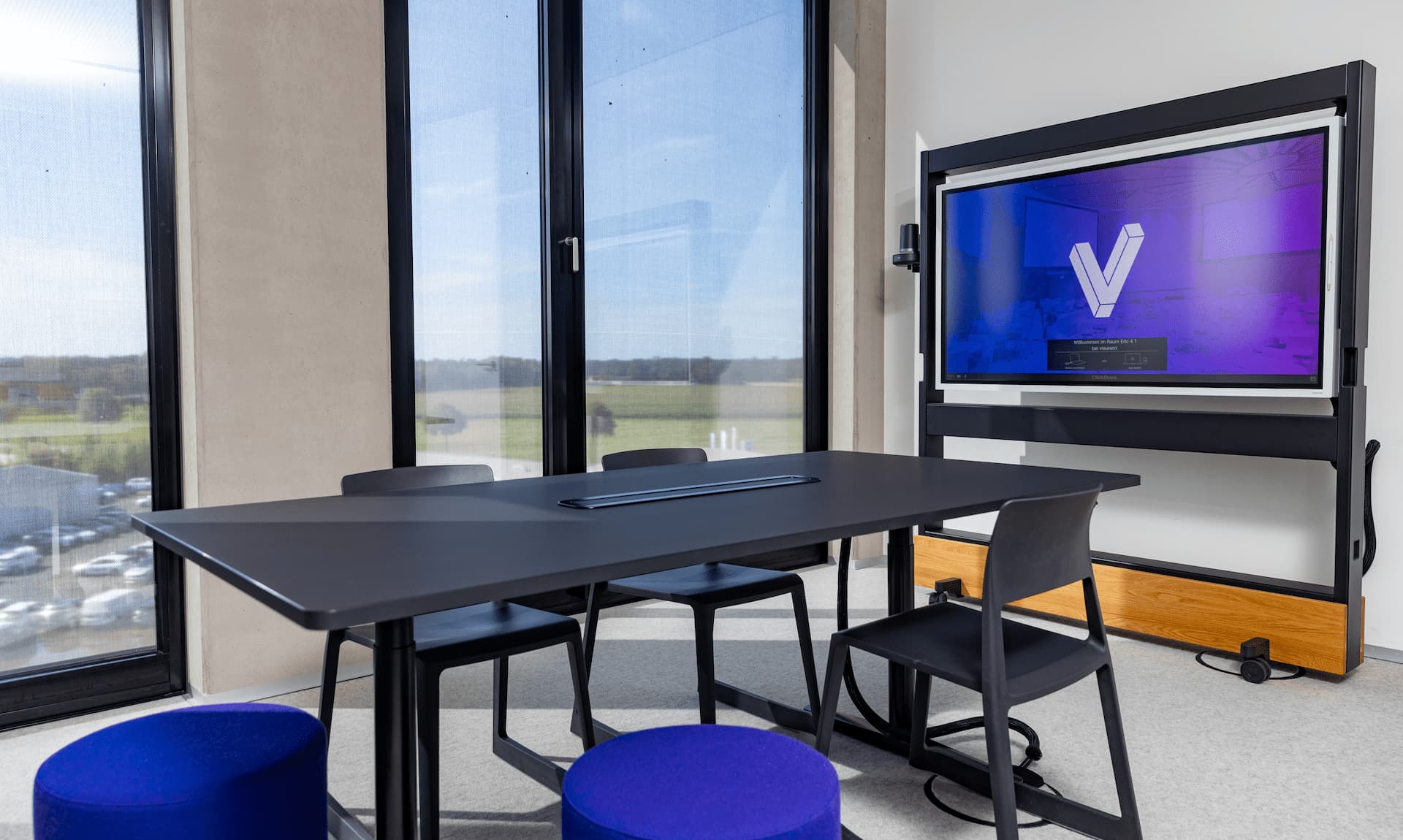
In meeting rooms, touchscreen displays really come into their own during hybrid meetings. Participants can mirror their laptop screen at the touch of a button or via an app, annotate presentations directly on the display and record the results digitally. With a built-in camera and microphones, or when used in conjunction with a video conferencing system the display becomes the central hub for Microsoft Teams, Zoom or Google Meet. You’ll find all-in-one solutions developed specifically for this purpose under Collaboration Boards, and traditional presentation displays under Meeting Room Displays.

In schools and higher education: the digital whiteboard for modern teaching
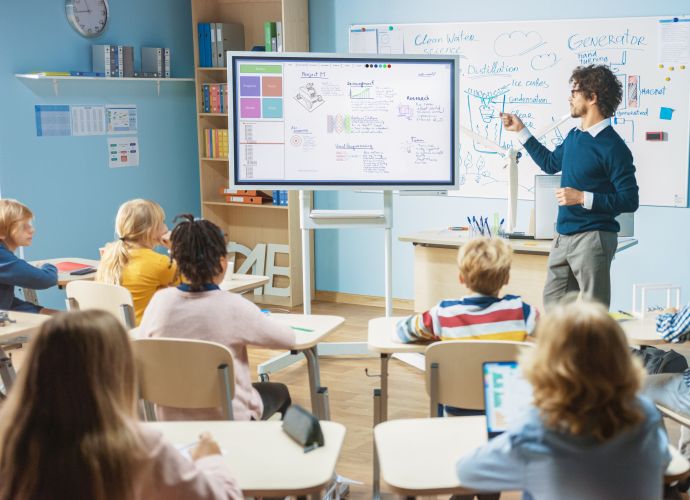
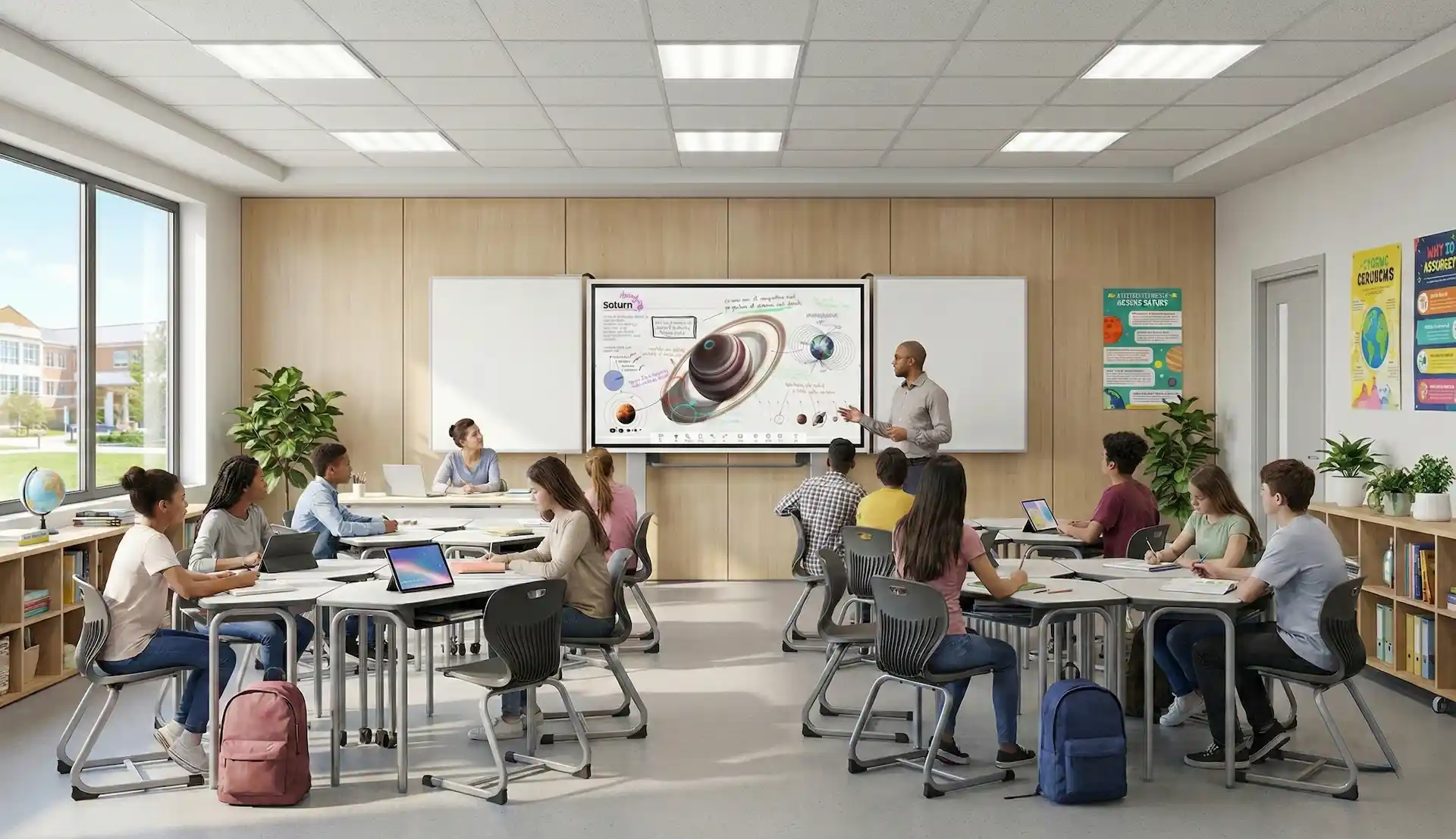
The interactive display replaces the chalkboard in the classroom without changing the usual routines. Teachers write on it using the pen, whilst pupils work on it simultaneously in pairs or groups of three. Integrated learning software, access to educational apps and the use of tablets ensure varied lessons. A document camera enlarges worksheets and experiments on the screen. We have compiled models specifically designed for teaching – including those without touch functionality – in the Classroom Displays category.
What to look out for when buying
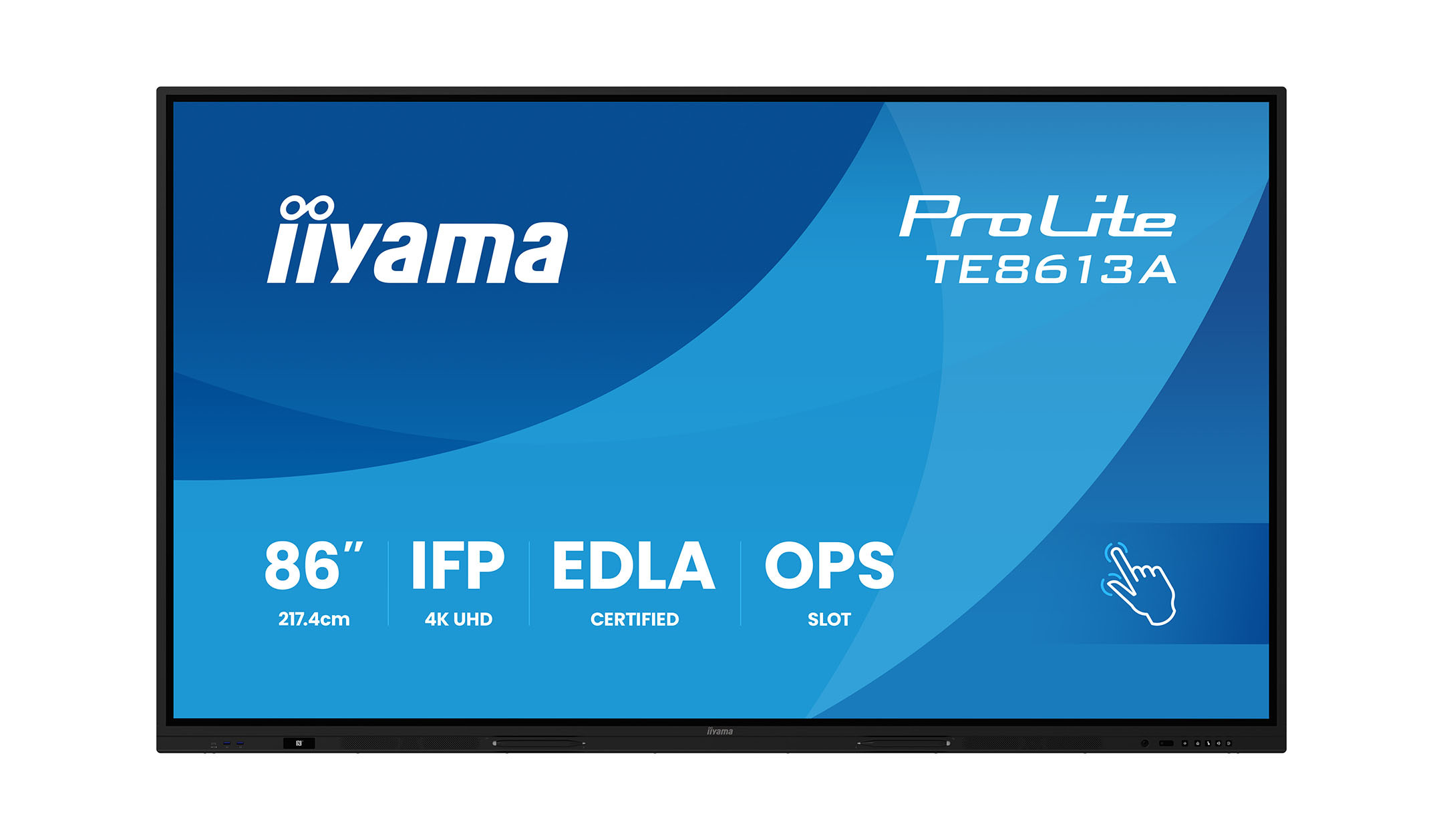
- Screen size: As a rule of thumb, 55 to 65 inches is suitable for small huddle rooms, 75 inches for medium-sized meeting rooms, and 86 inches or more for classrooms and larger conference rooms.
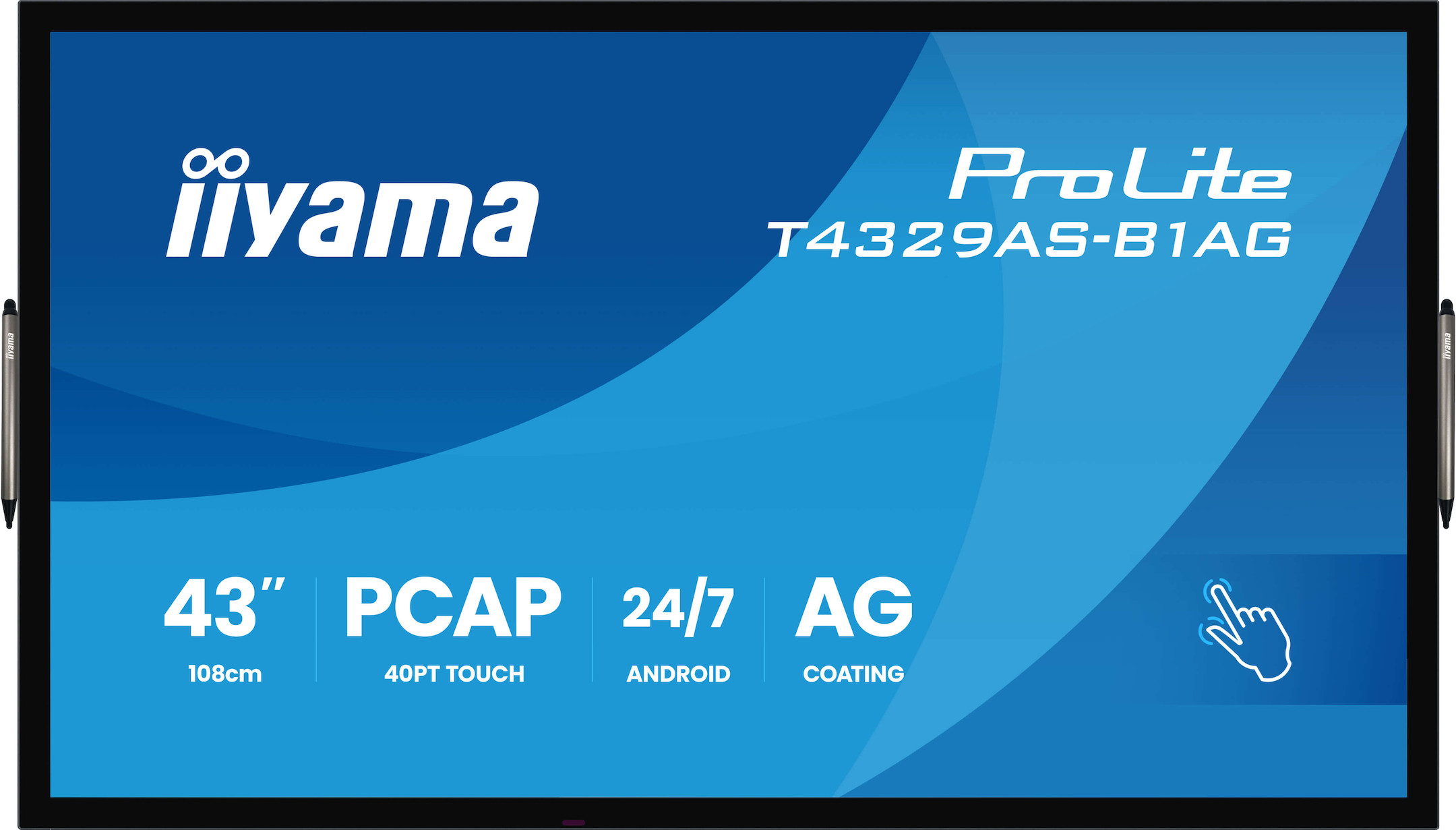
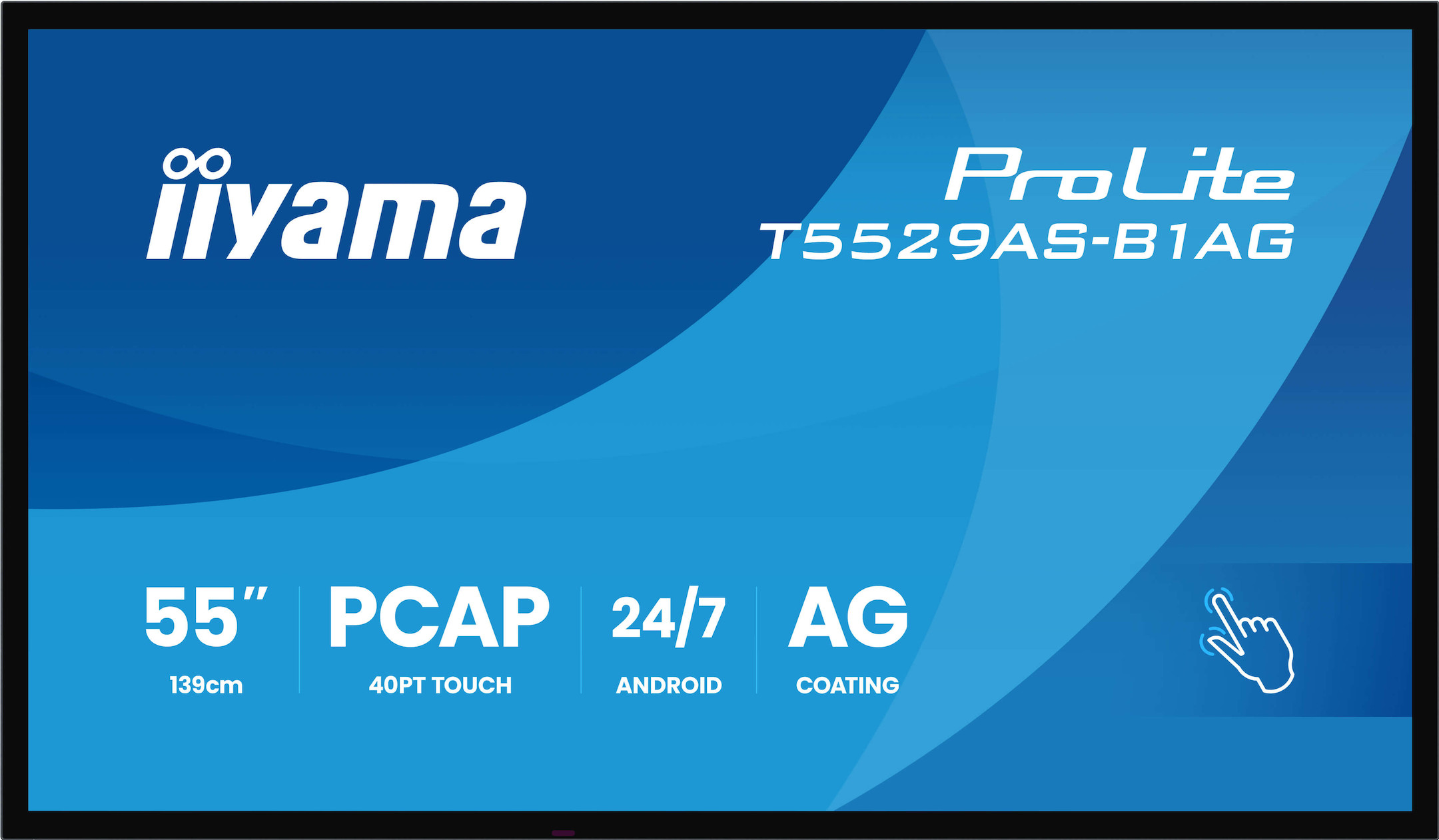
- Touch technology: Infrared touch is robust and cost-effective. Capacitive touch surfaces (PCAP) with optical bonding offer a particularly direct writing experience, as the pen and the line correspond exactly.
- Multi-touch: The more touch points a display recognises, the more people can work on it at the same time.
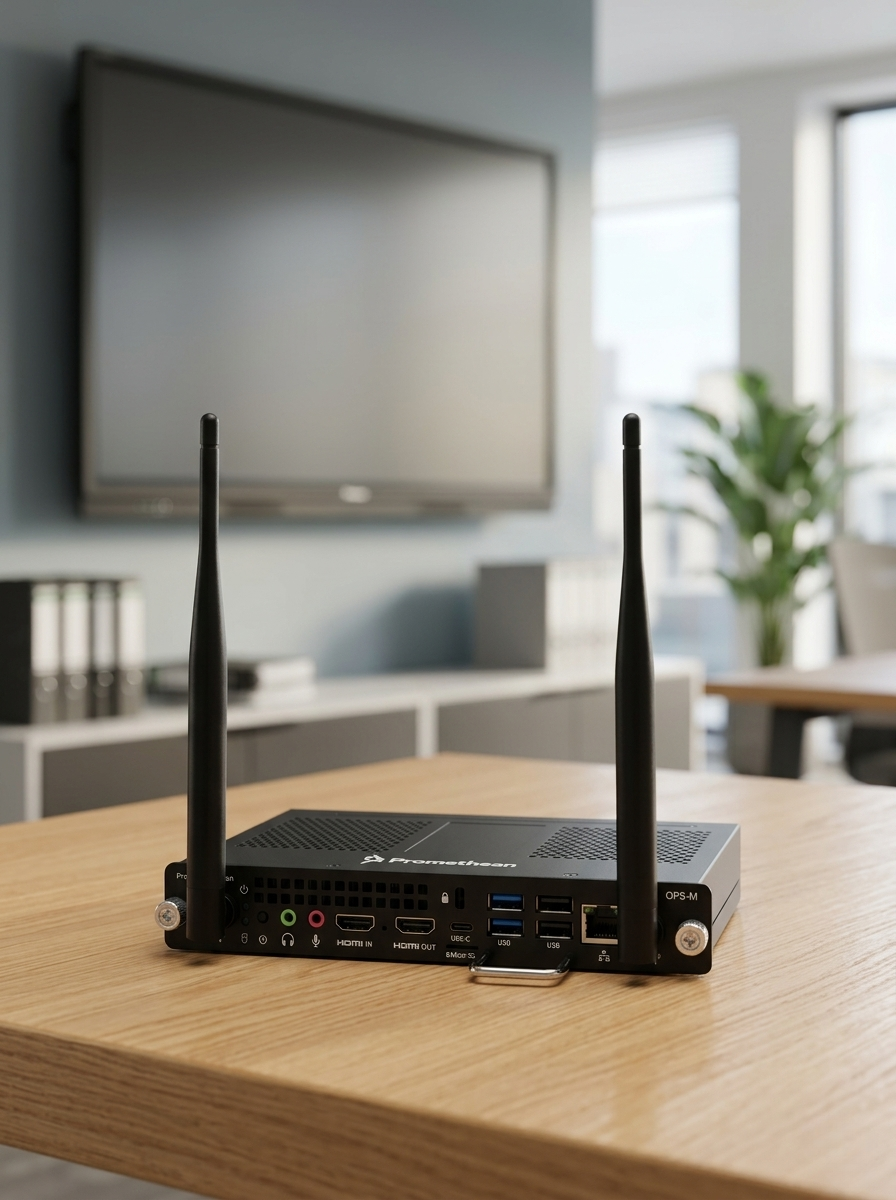
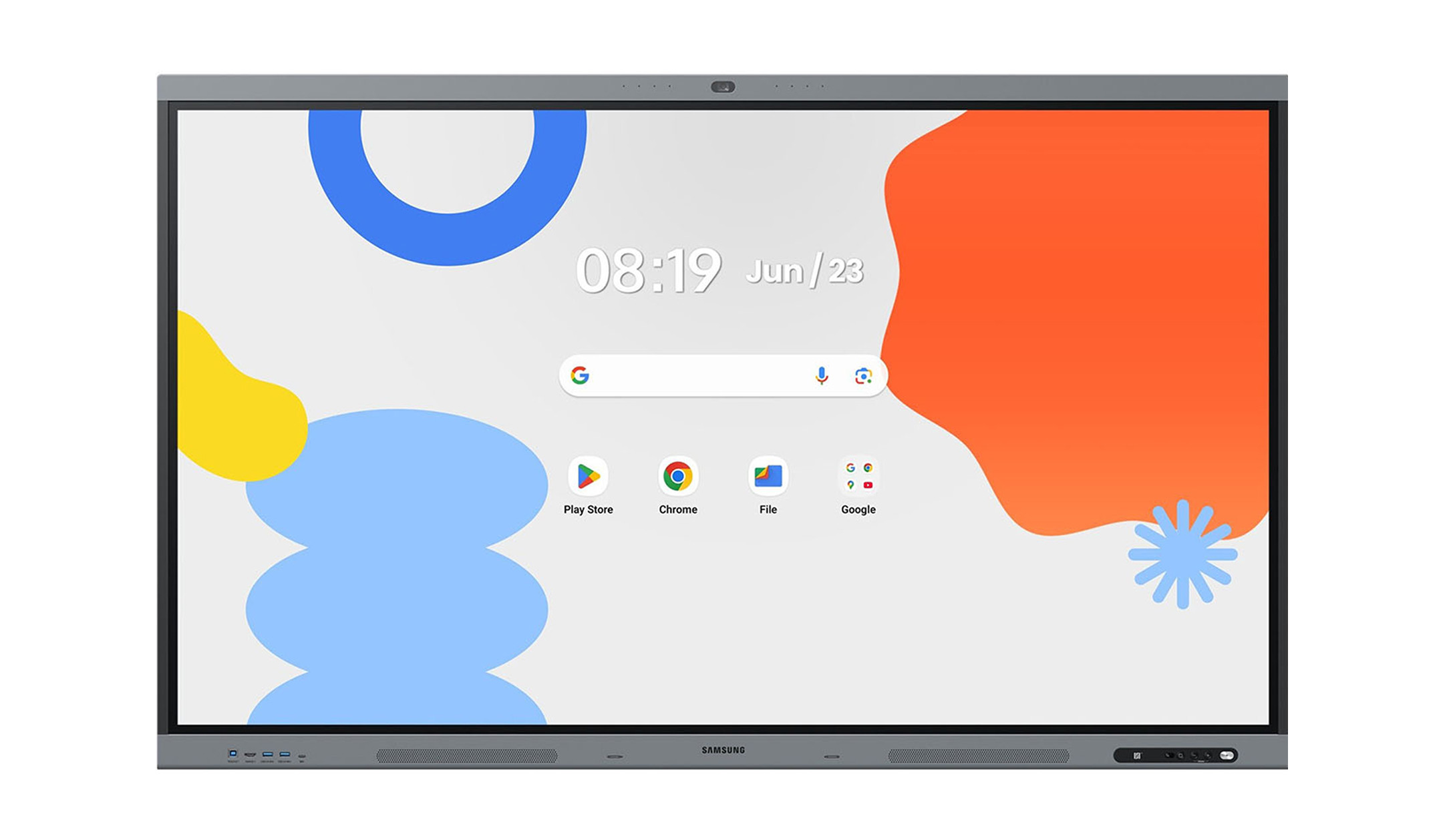
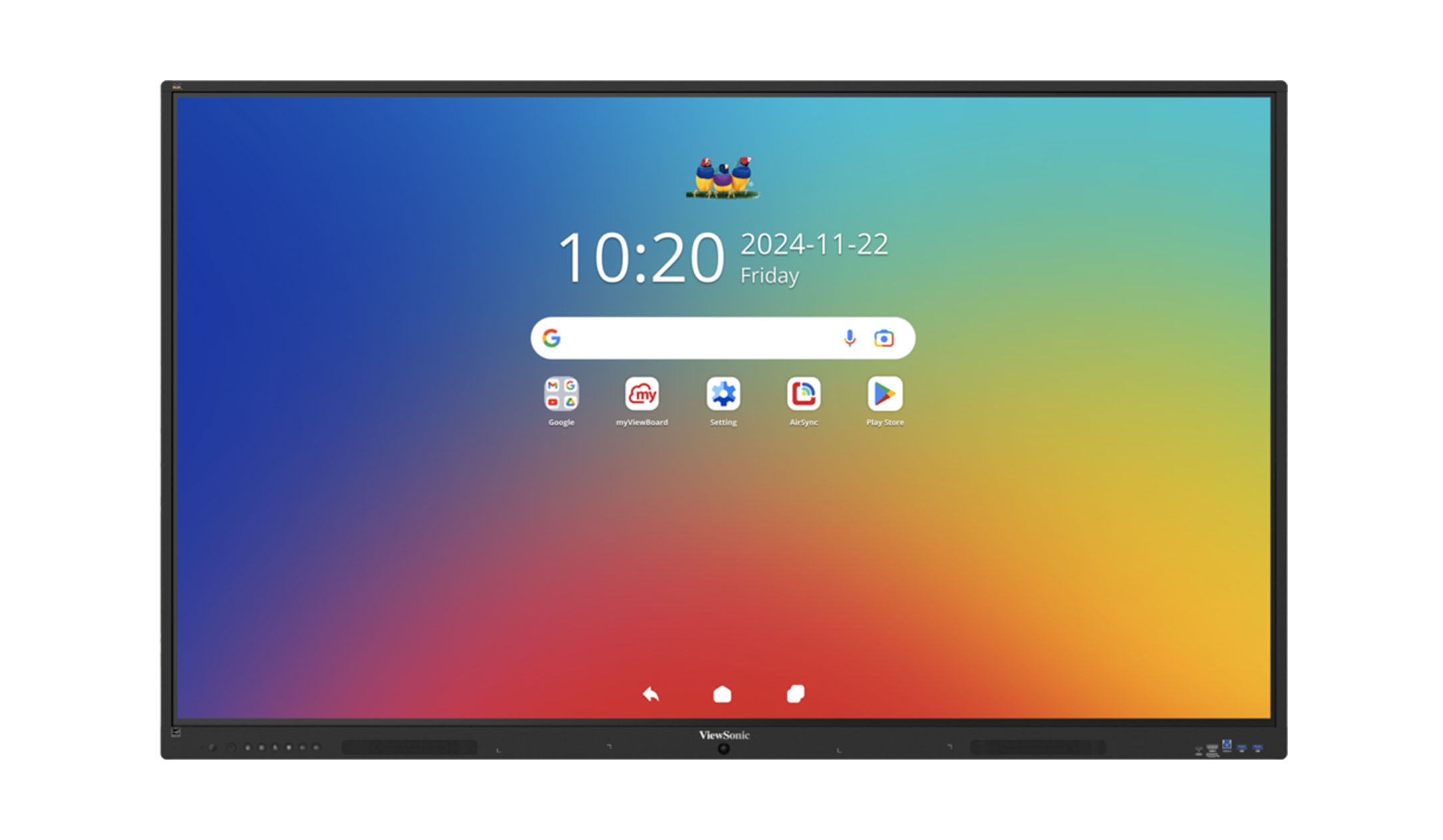
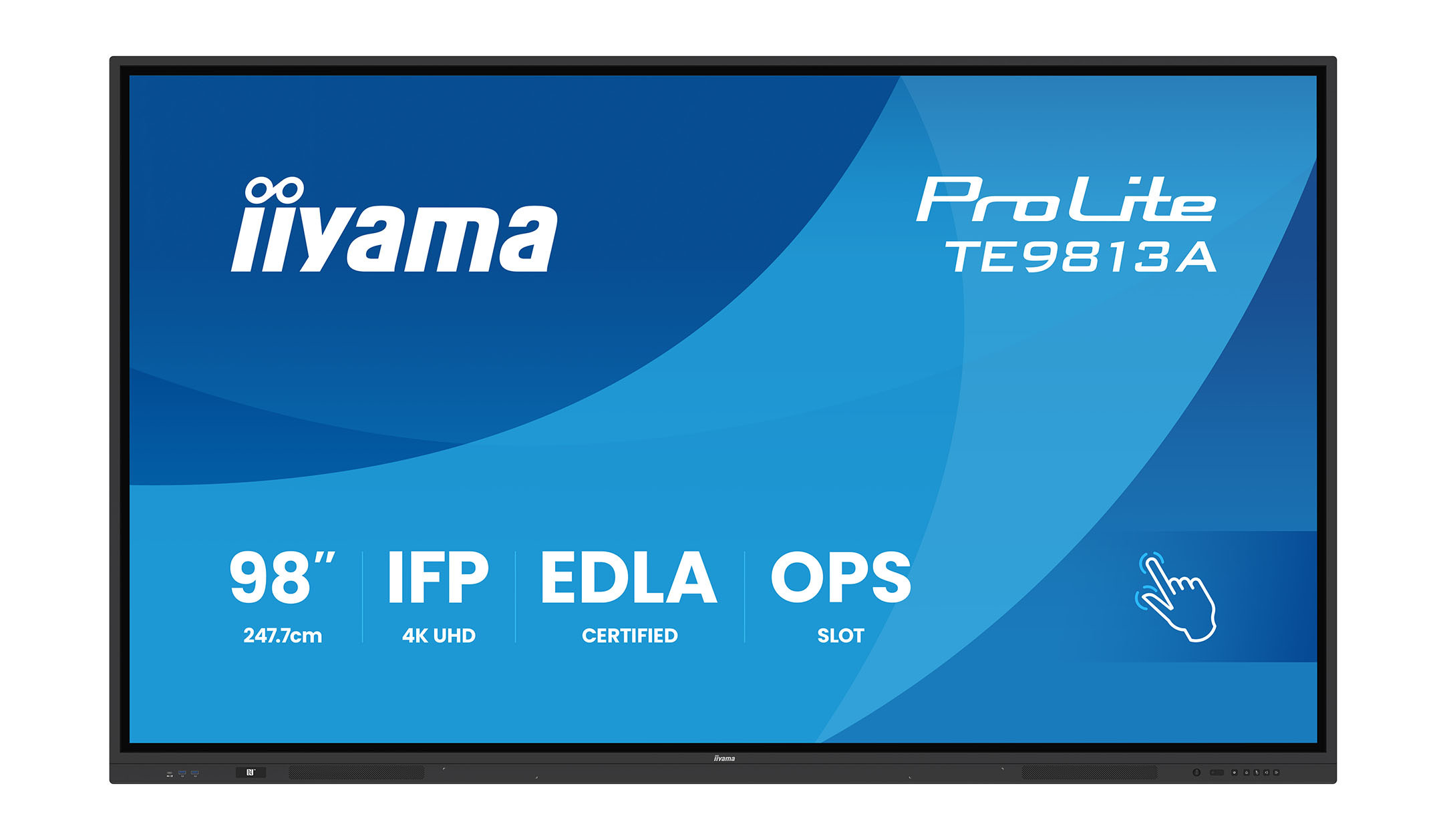
- Operating system: Many displays feature an integrated Android operating system. Additional EDLA certification enables access to Google Play services and ensures regular security updates. Those who require Windows and their familiar desktop environment can expand the display with an OPS Slot-In PC.
- Connections & Screen Sharing: USB-C with video, touch and power supply via a single cable, as well as wireless screen sharing from laptops and smartphones, make everyday use easier. Wireless presentation systems are also a useful addition.
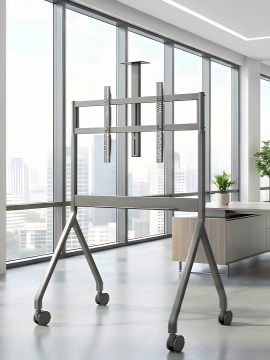
- Installation: Depending on the room layout, the display can be wall-mounted, installed on a stand or moved flexibly between rooms using a display trolley.
- Device management: For school authorities and IT departments, it is worth looking into remote management, which allows updates and settings to be controlled centrally across multiple displays.
Our media technology experts would be happy to help you determine which touch display suits your room, your IT infrastructure and your budget – by telephone, email or via our video consulting service.
The Samsung Flip Pro put to the test: all the features explained in the video
Frequently asked questions about interactive touch displays
An interactive whiteboard combines a projector with a projection screen. Either the projector has a touch module that recognises gestures on the whiteboard, or the whiteboard itself has a touch-sensitive surface. An interactive display, on the other hand, is a self-illuminating screen, similar to a television, with integrated touch recognition. It delivers a brighter and sharper image, casts no shadows and does not require any lamp changes.
In most classrooms, an 86-inch screen has proved its worth. In large rooms or lecture theatres, larger screen sizes or additional displays are also used in the back rows.
Not necessarily. Most models come with their own operating system, including whiteboard software, a browser and screen-sharing functionality. For Windows applications, we recommend an OPS Slot-In PC or a connected laptop.
EDLA stands for ‘Enterprise Devices Licensing Agreement’ and is an official licensing and certification programme from Google for professional Android devices. EDLA-certified displays offer full access to the Google Play Store and all Google services. This means you can download your favourite educational apps and use them directly on the interactive touchscreen. The certification therefore ensures greater app variety, simple IT management and high security standards through regular updates and Google Play Protect.
Yes, thanks to multi-touch recognition, several people can write and draw at the same time. What’s more, many models can distinguish between a stylus, a finger and the palm of your hand. This means you can erase with your hand whilst others carry on writing.